
Hiding a folder in Windows does not require advanced skills, but most users stop at the “Hidden” checkbox in the properties. This basic option does not withstand a quick search or a glance in the explorer by someone who knows how to show hidden items. The seven techniques that follow cover gradual approaches, from native settings to scripts and registry tweaks, to adapt the level of concealment to the actual context of use.
1. Hidden attribute via folder properties
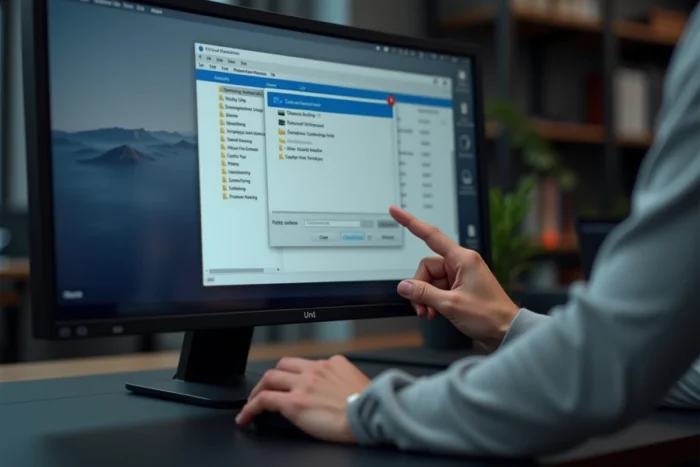
This is the most well-known method: right-click on the folder, Properties, then check the “Hidden” box in the General tab. The folder disappears from File Explorer, provided that the “Don’t show hidden files, folders, or drives” option is active in the view options.
The limitation is obvious. Any user can reactivate the display of hidden items in two clicks from the View menu in the explorer. This trick is suitable for avoiding visual clutter or deterring a distracted glance, but not for protecting sensitive data.
If you are looking for other methods to hide a folder on D’clic Lab, the principle remains the same: the hidden attribute is a first level, never a sufficient protection on its own.
2. Disable Windows Search indexing on the folder

A folder marked as hidden can still appear in the Windows search bar results if its content remains indexed. This is a leak point that many guides overlook.
To remedy this, open the folder properties, click on “Advanced,” then uncheck “Allow indexing of the contents of this file in addition to the properties.” Apply the change to the folder and all its subfolders. Without this step, a hidden folder remains findable via Windows search.
This precaution complements the hidden attribute. It does not replace encryption for truly confidential files, but it removes the most common discovery channel on a shared workstation.
3. Double Hidden + System attribute with the attrib command
The attrib +h +s command applied to a folder gives it both the “Hidden” and “System” attributes. A folder with these two attributes will not display even when the user activates “Show hidden files” in the explorer. Additionally, “Hide protected operating system files” must be unchecked to see it, an option that the vast majority of users never touch.
The syntax in the command prompt (cmd) is simple:
- attrib +h +s “C:pathtofolder” to apply both attributes
- attrib -h -s “C:pathtofolder” to remove them and regain access to the folder
- Add /S /D after the path to include all subfolders and contained files
This technique is significantly more discreet than the simple hidden attribute, and it works on both Windows 10 and Windows 11.
4. Rename a folder with a CLSID to turn it into a system shortcut

Windows interprets folder names containing a globally unique identifier (CLSID). By renaming a folder according to the format FolderName.{CLSID}, the system visually transforms it into a system component like the Recycle Bin or Control Panel.
The CLSID of the Recycle Bin, for example, is {645FF040-5081-101B-9F08-00AA002F954E}. A folder named “MyFolder.{645FF040-5081-101B-9F08-00AA002F954E}” will display the icon and apparent behavior of the Recycle Bin. Its actual content remains accessible by opening the folder from the command prompt.
This method relies on visual camouflage rather than technical concealment. It deceives a human glance, not a file analysis tool. It remains effective on a family computer where no one suspects that a system shortcut is actually a personal folder.
5. Modify registry keys to control the display of hidden items

The Hidden and ShowSuperHidden values located in HKEY_CURRENT_USERSoftwareMicrosoftWindowsCurrentVersionExplorerAdvanced control the behavior of the explorer. The first controls the display of hidden files, while the second controls that of protected system files.
By setting Hidden to 2 and ShowSuperHidden to 0, the explorer hides these items even if a user attempts to modify the display options through the graphical interface. The modification via regedit.exe is reversible, but it discourages any quick toggling attempts.
The main interest of this approach lies in its combination with the double attribute (tip 3). A folder with the Hidden and System attributes, on a workstation where the registry locks the display, becomes nearly undetectable without administrative access to the registry.
6. Create a .bat or .reg script to automate concealment

Rather than manually repeating the attrib commands or registry modifications, a .bat file allows you to automate the hiding and restoration with a double-click. The script applies the desired attributes, optionally modifies the registry keys, and then refreshes the explorer.
A .reg file works on the same principle for registry keys. Simply merge it with the registry to apply the settings, and prepare a second .reg file to restore the default configuration.
- The .bat script is suitable for operations on folder attributes (attrib +h +s)
- The .reg file targets registry keys (Hidden, ShowSuperHidden)
- Combining both into a single .bat offers complete locking in one action
Keep these files in a separate location, ideally on a USB drive, to prevent them from revealing the existence of the hidden folder.
7. Encrypt the folder with EFS or a dedicated third-party tool
Hiding a folder does not prevent someone from opening it if they find it. Encryption is the only real protection against unauthorized access. Windows includes EFS (Encrypting File System) in Pro and Enterprise editions: right-click, Properties, Advanced, then check “Encrypt contents to secure data.”
EFS ties decryption to the Windows user account. If another account accesses the file, it cannot read it. The limitation: EFS is not available on Windows Home, which equips the majority of consumer PCs.
Third-party tools like Picocrypt or Cryptomator allow you to encrypt folders regardless of the Windows edition. Picocrypt is a lightweight open-source software that does not require installation. Cryptomator is designed to encrypt files synchronized with a cloud service like OneDrive or Google Drive.
None of the six previous techniques replace encryption when data privacy is the real goal. The ideal remains to combine concealment (attributes, registry, script) and encryption to make a folder both invisible and unreadable, even if discovered.