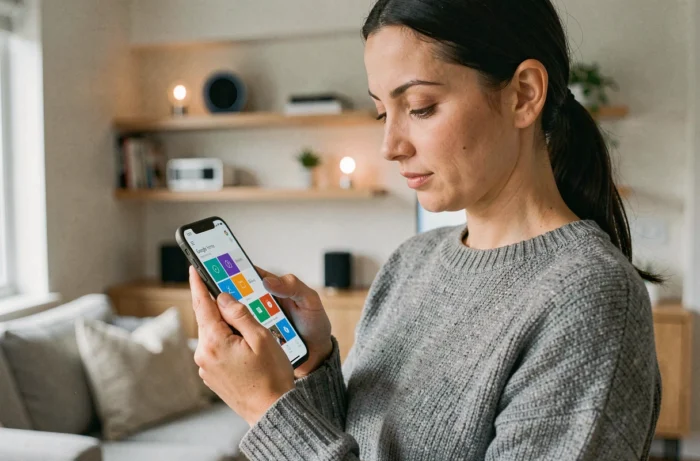
You come home with your arms full of groceries, the door closes, and you say, “OK Google, turn on the living room.” Nothing happens because the connected bulb is not assigned to the correct room in the app. This kind of friction occurs as soon as you exceed three or four devices in Google Home. The device tile, that small touch rectangle displayed on the app’s home screen, is precisely the lever that avoids these blockages, provided you understand how it works and how to customize it.
Google Home Tile and Room Organization: The Foundation to Set Up Correctly
Every device added in the Google Home app automatically generates a tile on the main screen. This tile displays the device name, its status (on, off, current temperature), and allows for quick action with a single tap.
The common trap is to leave the default names. A bulb named “Light 1” in a house that has eight becomes unusable. We rename each device with a clear format: type + room (“Desk Lamp,” “Kitchen Outlet”). This step also conditions the reliability of voice commands, as Google Assistant relies on these names to interpret commands.
Assignment to a room is equally crucial. In the Google Home app, each device must be linked to the corresponding room via the device settings. Without this assignment, the tile appears in the general list without context, and the command “turn off the bedroom” produces nothing. To fully understand how to use the Google Home tile daily, this room organization remains a non-negotiable prerequisite.
Customize the Home Screen: Favorite Tiles and Display Order
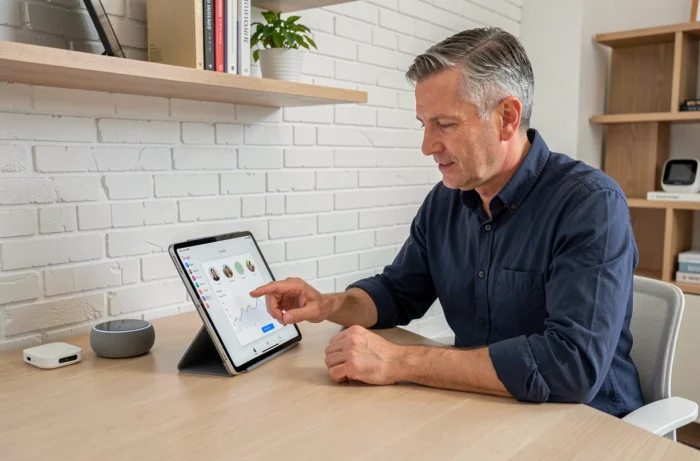
By default, the app displays the tiles in an order that may not correspond to your usage. The home screen offers a “Favorites” section where you can pin the most frequently used devices. You can access it by long-pressing a tile and then selecting the option to add to favorites.
In practice, a typical smart home often has about ten devices. Prioritizing the three or four that you use every day (the living room light, the thermostat, the coffee maker outlet) radically changes the fluidity of use. Favorite tiles appear at the top of the screen, before the rest.
Group by Usage Rather Than by Brand
Google Home categorizes devices by room, but nothing prevents you from creating “fictitious” rooms corresponding to uses. Some users create a “Party” room that groups the LED strip, the speaker, and the projector outlet. The tile for this room then becomes a shortcut to activate everything at once.
Feedback varies on this point: this trick works well with four or five devices, but beyond that, navigation in the app can become confusing if you multiply virtual rooms.
Chained Voice Commands with Gemini for Home
The most recent evolution concerns the ability to chain multiple commands in a single voice phrase. With Gemini integrated into Google Home, you can say “Turn off the light and stop the music” or “Pause the music and turn on the living room lights.” Previously, each action required a separate command.
This feature changes the way tiles are used daily. Instead of tapping two successive tiles (one for lighting, one for media), one voice command replaces multiple touch interactions. For a “bedtime” scenario, you combine turning off the lights, locking the connected door, and stopping the music into one phrase.
Automations and Tiles: The Direct Link
The automation editor in the Google Home app has been recently revamped. Triggers, conditions, and actions are now listed alphabetically, making it easier to read on installations with many compatible devices.
A well-constructed automation can also generate a “button” type tile on the home screen. Here are the elements that can be combined in an automation:
- A time-based trigger (specific time, sunrise or sunset) or a manual trigger via the button tile
- Optional conditions (presence detected by the phone, state of a temperature or light sensor)
- Actions on one or more devices: turn on, turn off, set a temperature, play media on a Nest speaker
The result: a single tap on the automation tile triggers the entire sequence. You move from controlling device by device to scenario-based control.
Common Issues with Google Home Tiles and Concrete Solutions
Some situations frequently arise when managing your connected device tiles in the app.
- Tile displaying “Unavailable”: the device has lost its Wi-Fi connection or the manufacturer’s service is temporarily down. Check the device’s network connection, then force a sync in the Google Home app settings
- Tile not responding to touch: close the app and reopen it. If the problem persists, unpair and then re-pair the device
- Tile missing after adding a device: ensure that the device is compatible with the Google Home ecosystem (Matter, Wi-Fi, Zigbee protocols via a compatible hub). The list of compatible devices exceeds 50,000 references according to Google
- Tile order resetting: this bug sometimes occurs after an app update. Re-pinning the favorites usually restores the desired display
Control from a Connected Nest Hub Screen
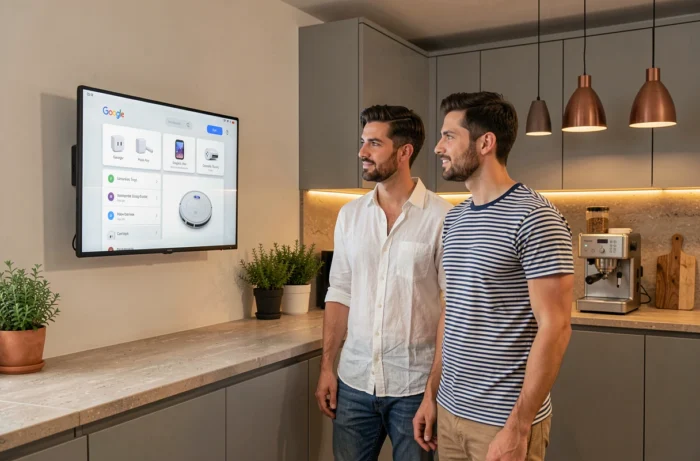
On a Nest Hub, the tiles are displayed directly on the home control screen. You find the same favorites as in the mobile app, with the ability to navigate by room by swiping the screen. The connected screen becomes a wall control panel placed in the hallway or kitchen, without needing to take out your phone.
The key point to get the most out of the Google Home tile: name correctly, assign to the right room, pin as favorites what you use every day, and build automations for recurring scenarios. The rest, the app manages.